
Latest Post Shortcode 9.6
The features introduced in version 9.6 include the tiles grid options for different screen sizes, the CSS helper, the WordPress native post classes and a new experimental horizontal tile. The “Latest Post Shortcode” helps you display a custom selection of articles as a list, as a grid, or even as a responsive slider (posts, pages,…
Summary
NEWTiles Grid OptionsNEWCSS Helper- Added Post Classes
NEWExperimental Horizontal Tile- Other Updates
- Where is the button?
- See also other extended available options
Tiles Grid Options
The NEW options are available in the “extra options” section and allow you to set for each shortcode different height, gaps, padding, and overlay padding for desktop vs. tablet vs. mobile. So, this allows you to configure more easily the aspect of each of the shortcode output directly from the UI. Use px, %, vw or vh as units. Leave empty if you want to use the defaults.
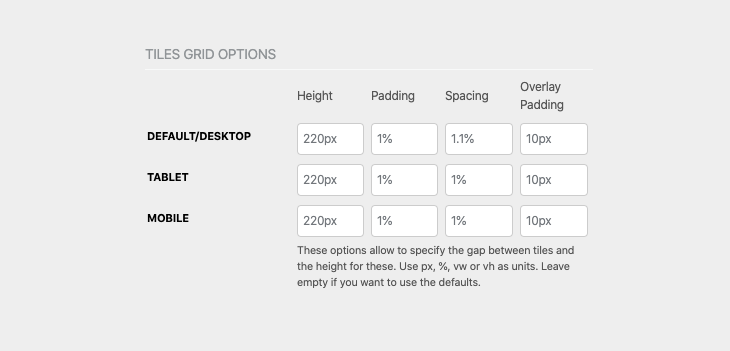
As a note, the padding is applied when you are not using overlays, and the overlay padding is working only when you use any combination of the tiles overlays.
Shortcode example:
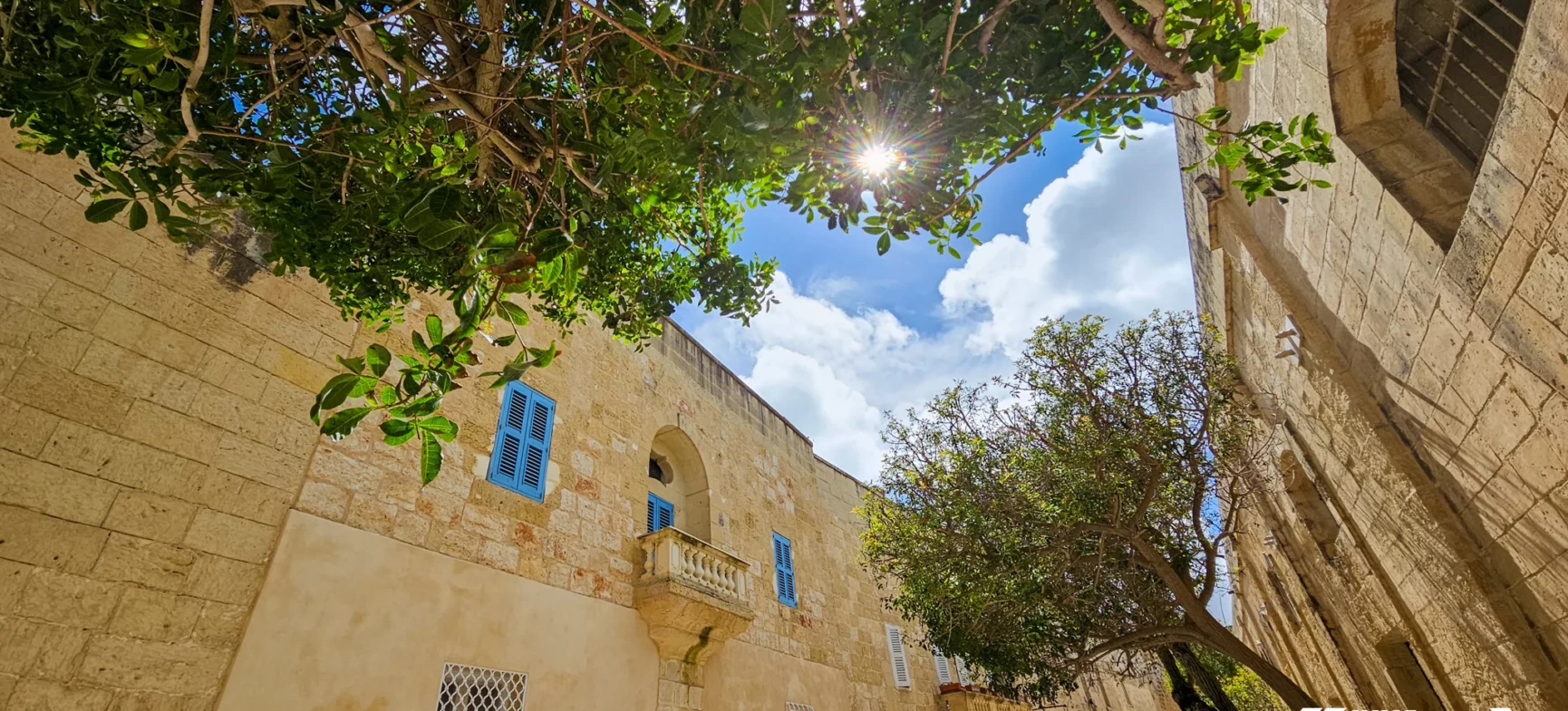
[latest-selected-content limit="3" display="title,excerpt-small" titletag="strong" chrlimit="60" url="yes" linktext="Read more" image="large" elements="3" default_height="400px" default_gap="20px" default_overlay_padding="20px" tablet_height="300px" tablet_gap="10px" tablet_overlay_padding="20px" mobile_height="400px" mobile_gap="20px" mobile_overlay_padding="10px" css="three-columns as-overlay tall light hover-zoom" type="post" status="publish" taxonomy="category" term="travels" orderby="dateD" show_extra="cache"]Move the mouse over the tiles to see the new effect and also try to scale the window to see how the tiles will adapt to the new view size.


CSS Helper
Configuring the CSS style for the shortcode got much easier, as I added a NEW helper that allows you to select the number of columns, and how to align the content inside the tiles if these should be rendered using overlays (the images are used as the background of the tiles and the rest of the configured content is placed over it), if the tiles should scale when moving the mouse over, etc.
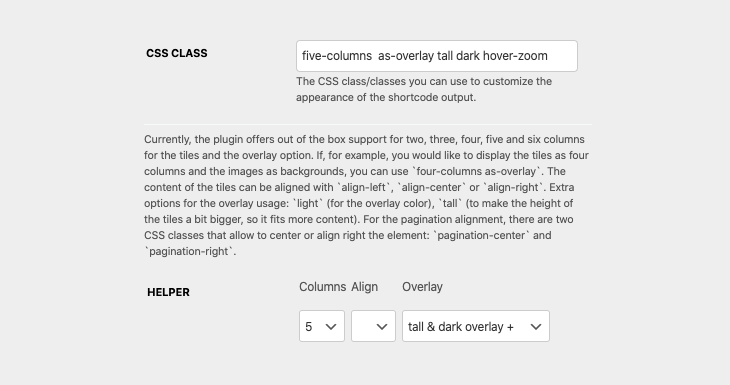
If you select something using the helper, the CSS styles will be populated with the selected options.
Post Classes
Starting with this version the article element that is associated with each tile uses the WordPress native post classes to allow you to better target the elements if you need to apply more styles.
Experimental Horizontal Tile
Starting with this version there is a new type of tile that is displaying an image and the content side by side, and this can be rendered by setting the shortcode CSS class to h-image-info (the image is displayed on the left) or h-info-image (the image is displayed on the right).
This type of tile is a more refined version of the default list item, that allows showing the image as half of the entry and the content in the other half. The background color of this new type of tile can be set using the CSS classes: bg-silver, bg-light-silver, bg-dark, bg-black, bg-light-trans or bg-dark-trans. By default, the background color is white.
Shortcode example:
[latest-selected-content limit="1" display="title,excerpt-small" titletag="strong" chrlimit="80" url="yes" image="product_image" elements="3" default_height="360px" default_padding="50px" tablet_height="300px" tablet_padding="20px" mobile_height="200px" mobile_padding="10px" css="h-image-info bg-dark" type="post" status="publish" taxonomy="category" term="travels" id="4278" orderby="dateD"]
There are places I instantly fall in love with…
Other Updates
- Tested up to 5.4;
- Fix tiles stripped attributes;
- Added the clear overlay option;
- Added the hover scale effect for tiles rendered with overlays;
- Fix for Elementor preview not updating when the shortcode was embedded.
Where is the Button?
The button for configuring the shortcode is displayed as an icon or as the LPS button, depending on the mode you use when adding/updating content (the posts, pages, widgets, etc.):
- in the Visual mode of the editor, the button appears in the toolbar as an icon
- in the Text mode of the editor, the button appears in the toolbar as the LPS button
The button for the shortcode configurator can be used:
- when adding/editing posts, pages, text widgets
- in the Classic block for Gutenberg
- for version >= 8.7 the button is also available in Elementor.